
The HPath function - fn:q() allows seamless access to UIElements with GameDriver.
api.ClickObject(MouseButtons.LEFT, "//*[@name='UIDocument']/fn:component('UnityEngine.UIElements.UIDocument')/@rootVisualElement/fn:q('toggle-1')", 50);
fn:q(‘n’) can be called directly from the rootVisualElement property of the UIDocument component to query for an element with the name n anywhere within the visual tree. fn:q() calls can also be chained multiple times to find an object multiple levels down using an absolute path similar to normal HPath usage as seen in the article - Working with HierarchyPath.
The name of an element can be found in the UI Builder hierarchy or the UIToolkit debugger.

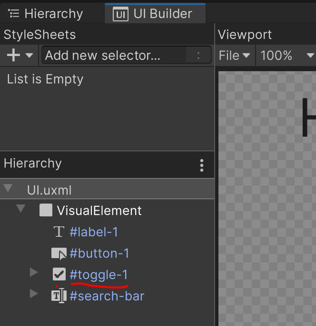
In case multiple types of elements share the same name in a visual tree, the class name can be used along with the name in the q function - fn:q(‘name’, ‘class’). The class name can be found next to the name in the UI Toolkit debugger.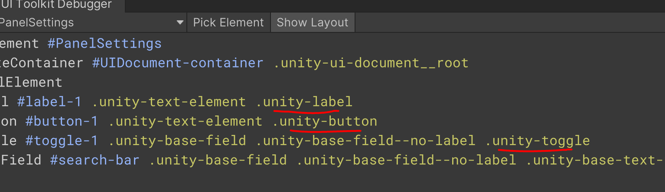
Usage with GetObjectFieldValue() method to access text field content and toggle state.
string t = api.GetObjectFieldValue<string>("//*[@name='UIDocument']/fn:component('UnityEngine.UIElements.UIDocument')/@rootVisualElement/fn:q('search-bar')/@text");

bool b = api.GetObjectFieldValue<bool>("//*[@name='UIDocument']/fn:component('UnityEngine.UIElements.UIDocument')/@rootVisualElement/fn:q('toggle-1')/@value");
To check if a UI element is active or not, enabledSelf or enabledInHierarchy properties can be used with the GetObjectFieldValue() method as in the examples above.
In case a UI element is active but hidden from the view, the visible property can be used instead.
Please refer to the Unity docs for more info on these properties.